WAF settings in WMC are the settings of the CID selected in the header. Open WAF settings in the sidebar. Each page writes through API. The field lists and the request bodies are in the API pages linked below.
A page with no CID shows Select a CID to view and change its settings. Add the license key from the header first. See Common elements.
Backup on a page saves a restore point for that section of the selected CID. Restore and compare are under System → Backups. Save is the same control on every settings page, in the title row after Backup. It stays gray until the page differs from the last loaded settings, then turns orange. A switch, a number, a list or a rule stays a draft until Save.
¶ Common
Common is the Filter settings that apply per host, URL or address. The option names below are the labels in the WMC. The API names are in Managing settings of the Filter.
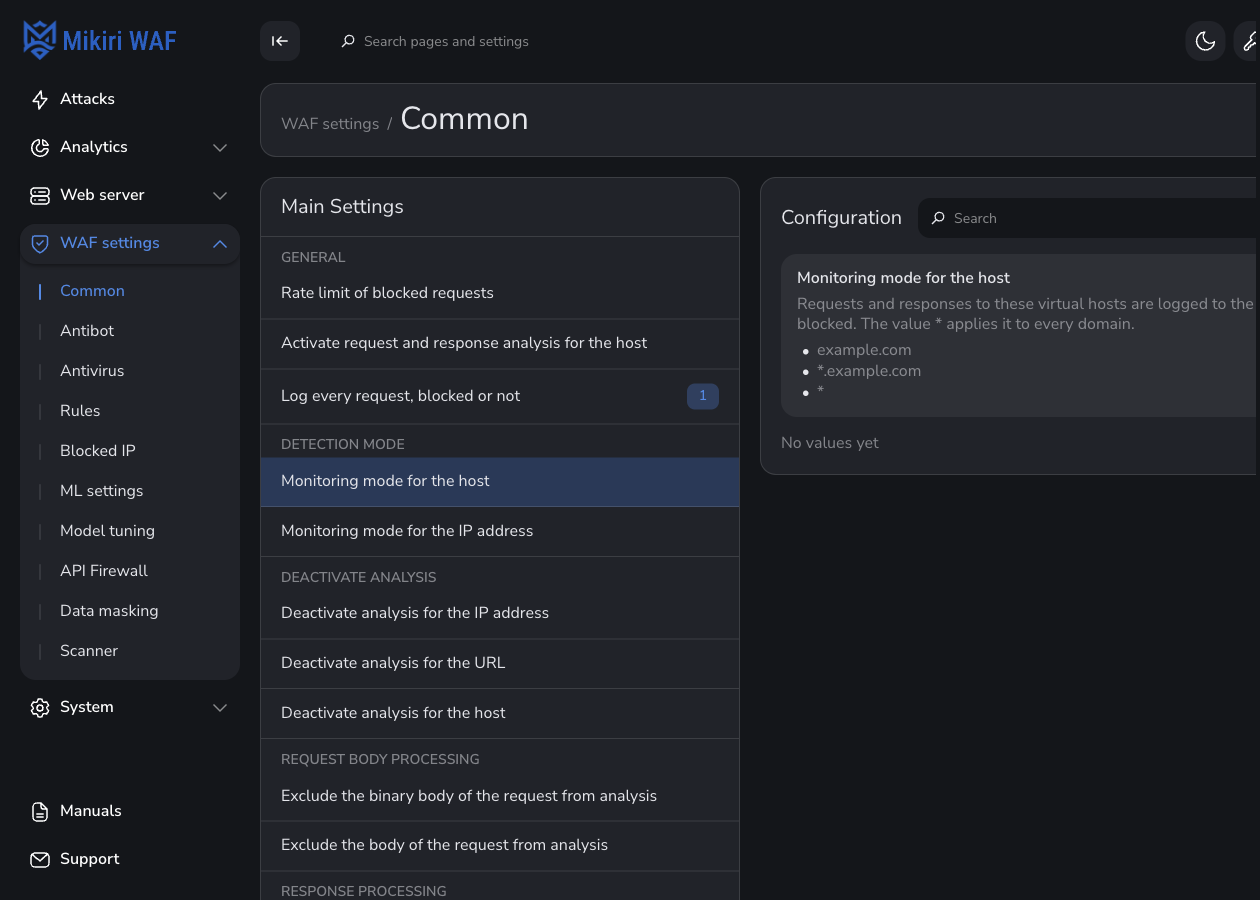
Select a row on the left. The panel on the right is that option. A host or URL is added in that panel. * covers every domain where the description of the option says so.
¶ General
- Rate limit of blocked requests (
waf_autoban). An address is temporarily blocked after this many blocked requests to the host. Until an address reaches that rate, brute-force, flood, DDoS and web scraping attacks are only detected, and the address is not temporarily blocked. An empty host applies the limit to every host that has no limit of its own. - Activate request and response analysis for the host (
waf_host_enable). With nothing set, every domain is analyzed. - Log every request, blocked or not (
waf_log_request). The address is optional. Logging the response is an Enterprise option.
¶ Detection mode
- Detection mode for the host (
waf_host_dm). Requests and responses are logged and are not blocked. Leave a host out of this list when it must block.*applies detection mode to every domain. - Detection mode for the IP address (
waf_ip_dm). The same for one source address. A host after the address, separated by a space, limits the exception to that virtual host.
While a host stays in Detection mode for the host, the Filter only records attacks. Remove the host after the attacks page shows no mass false blocks. The sequence is in Inline protection.
¶ Deactivate analysis
- Deactivate analysis for the IP address (
waf_ip_wl). The request is not analyzed, not sent to RabbitMQ not evaluated by Mikiri AI. - Deactivate analysis for the URL (
waf_url_wl). - Deactivate analysis for the host (
waf_host_wl).
¶ Request body processing
- Exclude the binary body of the request from analysis (
waf_body_bin_exclude). - Exclude the body of the request from analysis (
waf_body_exclude). - Parsing limits of a multipart/form-data body (
waf_multipart_limits). Parts in one body, header lines of a part, header size of a part in bytes, and nesting depth of a field name, for every host. An empty field keeps the Filter default shown under it, and0turns that limit off. A body over a limit is blocked as an RFC violation. The values are in waf_multipart_limits. - Parsing limits of an application/x-www-form-urlencoded body (
waf_urlencoded_limits). Parameters in one body, size of a parameter name in bytes, nesting depth of a parameter name, and control characters in the body, for every host. An empty field keeps the Filter default shown under it, and0turns that limit off;1in Control characters blocks a body with raw control characters or%00. A body over a limit is blocked as an RFC violation. The values are in waf_urlencoded_limits.
The API Firewall and the antivirus still see a body excluded here.
¶ RFC violation processing
Detection mode for RFC violations (waf_rfc_violation_dm) and Deactivate RFC violation analysis (waf_rfc_violation_wl).
¶ Other
Exclude the host from being sent to MLC (waf_rmq_host_exclude). Requests to that host are not used for behavioral models, for brute-force, flood, DDoS and scraping detection, or for automatic OpenAPI generation.
¶ Antibot
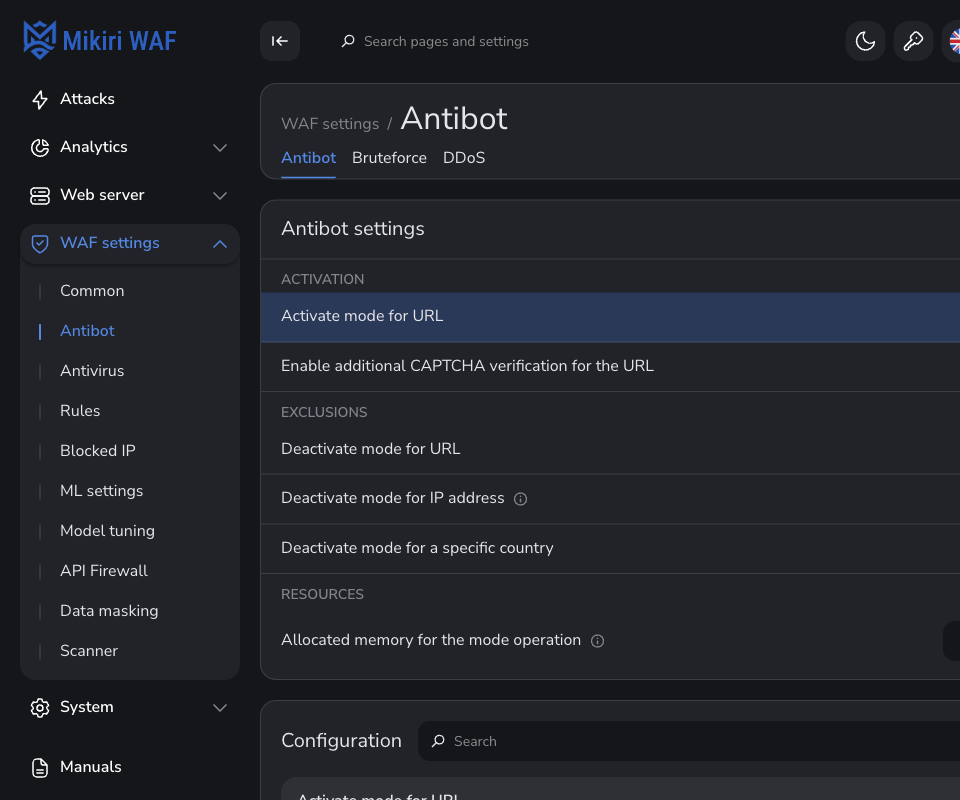
Antibot is the list of URLs that redirect the visitor to antibot.html, and the allow lists for URLs, addresses and countries. Bot detection holds brute-force, flood, DDoS and web scraping. The rate limit of blocked requests is the first group. Until an address reaches that rate, those attacks are only detected, and the address is not temporarily blocked. Brute-force and flood follow: the activation switch turns detection on, and the rules name the URLs that are counted. A request to any other URL is not counted. Then come the hosts left out or kept in detection mode. DDoS and web scraping come next, in the same order, with address and URL exclusions. Interaction with CAPTCHA is after the detectors. On the Antibot tab that group holds the CAPTCHA page, the URLs that require an extra CAPTCHA, and the hosts. Until the CAPTCHA page is set, that URL list and the hosts cannot be changed, and the row says to specify the CAPTCHA address. The hosts on Bot detection follow the same rule. Threat intelligence is last. The options are in Managing settings of the Filter and MLC settings management. Connecting the CAPTCHA page is in Integrating with CAPTCHA.
Disable the threat intelligence exchange with Mikiri IPG API (ti_exchange_disable) is one switch, under Threat intelligence. The switch stays off until it is turned on. Turned on, MLC stops the exchange for brute-force, flood, DDoS and web scraping. Attacks stay in Mikiri WAF.
While the switch is off, MLC posts each blocked attack to agent_activity_url. A report is the client IP address, the block type and a short description: 7 and Brute-force, 9 and Flood, 10 and DDoS, or 10 and Web scraping. The request format is in MLC settings management.
¶ Antivirus
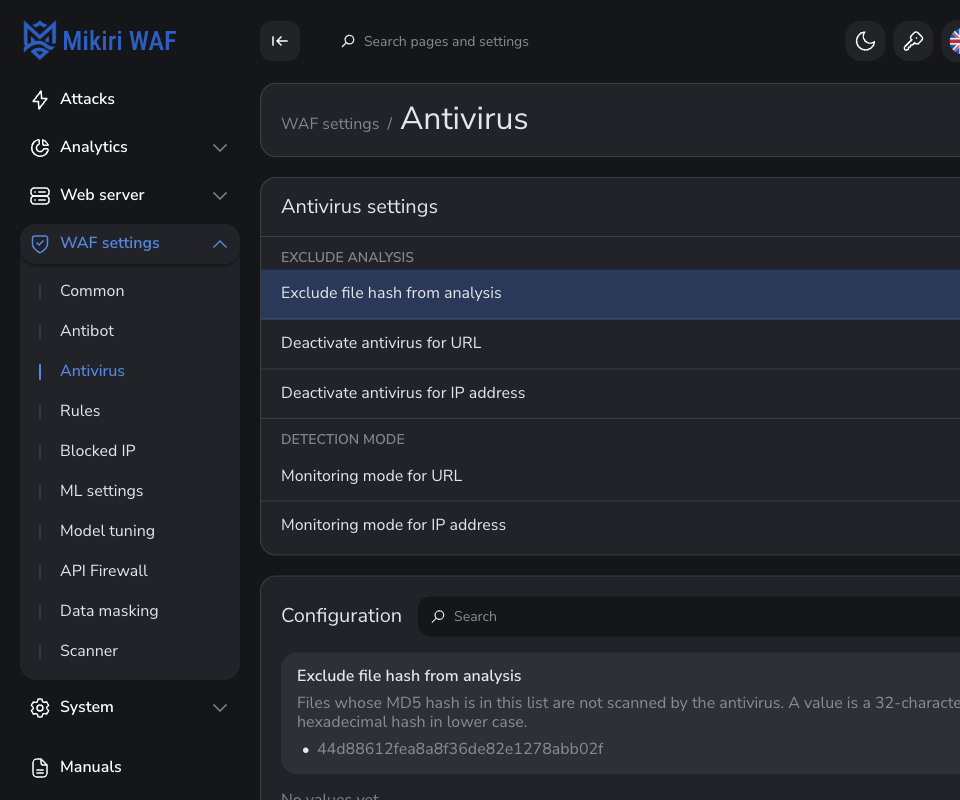
Antivirus is where antivirus analysis is turned off for a host, a URL or an address, or switched to detection mode. A file hash on the exclude list is not scanned. The options are in Managing settings of the Filter.
¶ Rules
Rules has two tabs.
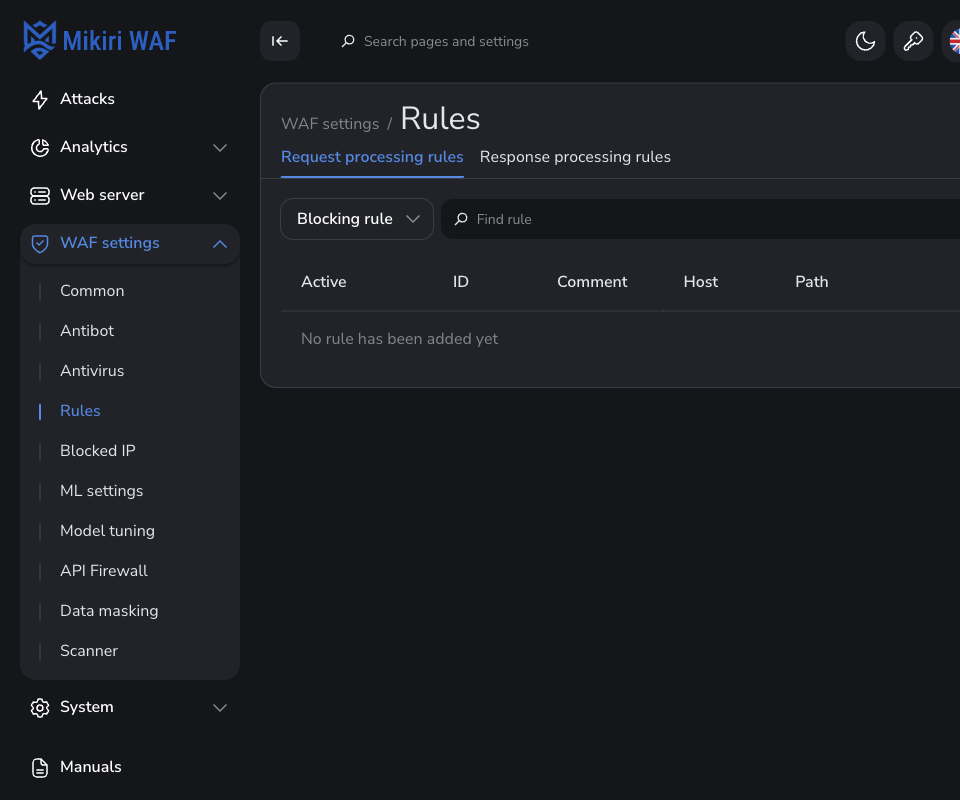
Response processing rules can be changed only while response analysis is on. Filter applies such a rule only on the Enterprise plan, and only when the request URL is listed in Activate response analysis for the URL. Until that list has an address, the tab stays read-only and points to Response processing.
Request processing rules. Response processing rules. The first column is only as wide as the check that turns a rule on or off, with a small gap on each side. That heading has no check, because the mark does not select rows. A thin line, the same as the divider on Attacks, marks the left and the right of ID, and the right edge of Comment, Host, and Path. The line before ID sits the same distance in from the column edge as the line after it, and it is not dragged. ID is centered between those lines. Dragging the other lines sets that column's width. The column grows or shrinks on that side, and the columns to its left keep their width. A double-click shrinks the column to the width of its content. The width stops at the title. Actions is not resized and stays the last column. When the columns are wider than the card, the row scrolls. The widths are remembered in this browser. Add rule opens the editor. A rule is Blocking rule or Exclusion rule it can be switched off without deleting it. Time of action is a number of hours after which the WMC turns the rule off. An empty time leaves the rule on until it is turned off by hand.
Every condition has a short description on the info mark beside its name. The request fields are in Request processing rules settings management. The response fields are in Response processing rules settings management. A header rule is in Rules for a request header. A response rule is in Response processing rules.
¶ Blocked IP
Blocked IP has two lists.
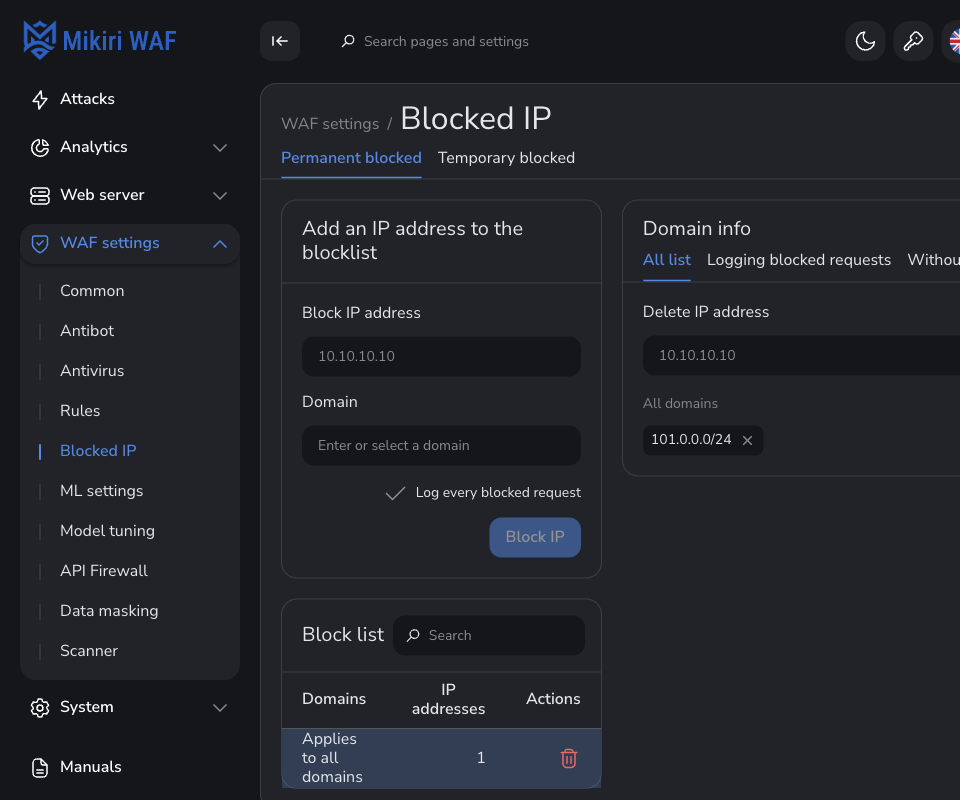
Temporary blocked is the first tab: the list filled by automatic blocking. Permanent blocked is the block list edited by hand. On both lists, dragging a column edge sets that column's width, and a double-click shrinks it to the width of its content. Actions stays the last column. Deleting an address removes it from that list. Block this address on Model tuning adds an address here, for every domain or for one domain.
The API pages are List of blocked IP addresses management and List of automatically blocked IP addresses management.
¶ ML settings
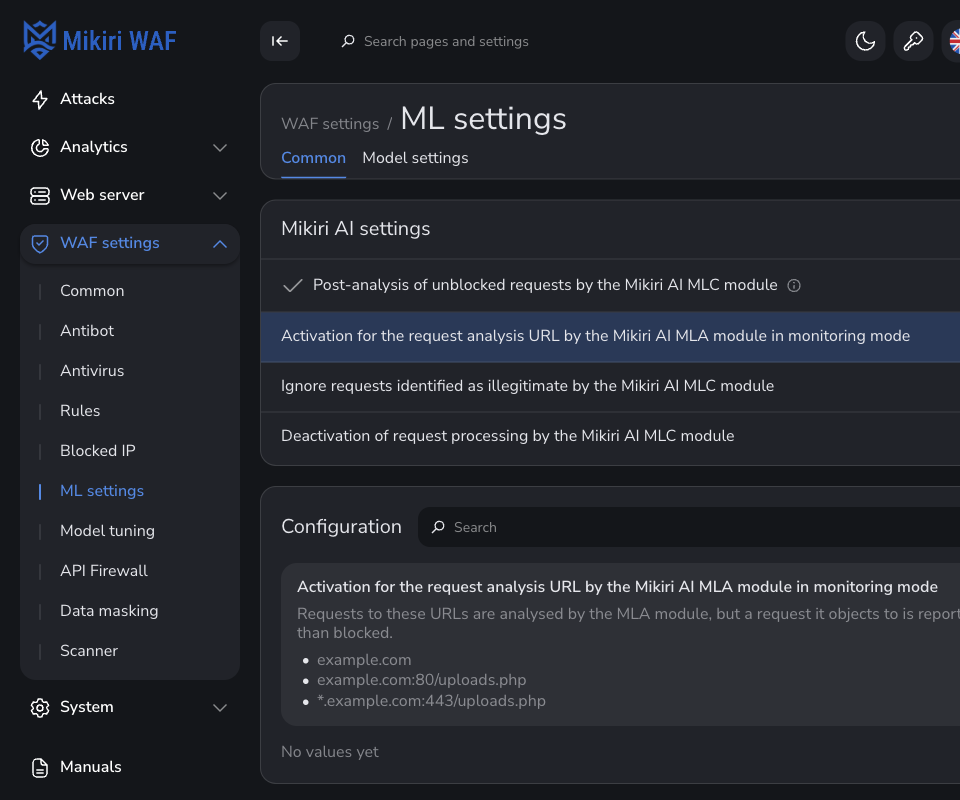
ML settings has two tabs. Both write through the API. Filter-side lists are in Managing settings of the Filter. MLC options and models are in MLC settings management and Behavioral model management.
¶ Common
- Post-analysis of unblocked requests by the Mikiri AI MLC module (
ml_enable). Requests that were allowed are analyzed afterwards. - Activation for the request analysis URL by the Mikiri AI MLA module in detection mode (
waf_mla_url_dm). MLA still analyzes the URL a request it objects to is recorded and not blocked. This is the detection mode of the machine-learning module, not Detection mode for the host. - Ignore requests identified as illegitimate by the Mikiri AI MLC module (
waf_mlc_ml_detect_host_wl). - Deactivation of request processing by the Mikiri AI MLC module (
waf_mlc_ml_detect_host_dm). MLC still analyzes the host nothing it finds is blocked.
The order for a new model is in Activating AI protection: put the host on the model list, turn MLA detection mode on, wait until training finishes, then turn MLA detection mode off when the attacks page shows no mass false blocks from the model.
¶ Model settings
Behavioral models trains one model per virtual host from the requests that host receives. The training period is a number of days. A trained host is green, a host still training is amber a host without a model is hollow. Train again starts another training period. Finish training stops the current one. Delete model removes the trained model. Delete ML host removes the host from this list.
¶ Model tuning
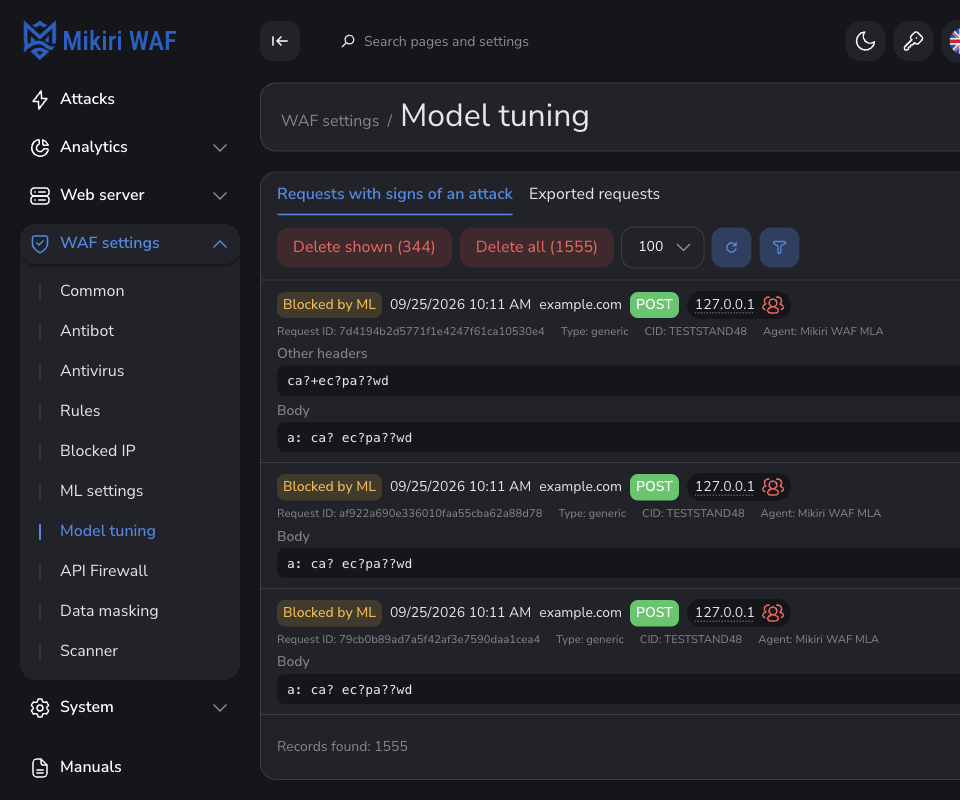
Model tuning is the list of requests used to correct a behavioral model: requests the signature analysis blocked and MLA allowed, requests MLA blocked requests both blocked. Exported requests is the other tab. Export and the tuning actions are in Behavioral model tuning.
Filters on Requests with signs of an attack are three columns. They stay after the page is reloaded. A zone exported without editing the value is marked Exported. On either tab, select records and use Delete selected.
Block this address, next to the address, adds it to the permanent block list. The choice is every domain, or only the domain of that record. The address then shows on Blocked IP, on Permanent blocked, for the CID the record belongs to.
¶ API Firewall
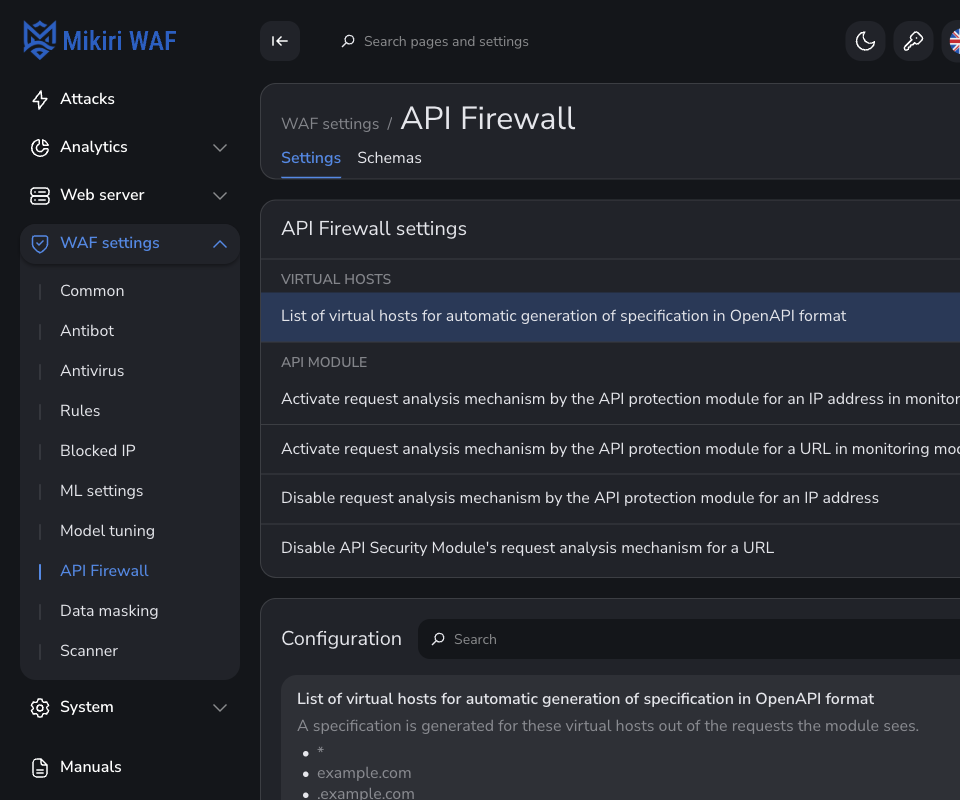
API Firewall sets the virtual hosts for which a specification is generated from traffic the addresses and URLs that are monitored or excluded from the specification check. Schemas is the other tab. Its address is ?schemas, and the open list (Uploaded, Autogeneration, or Excluded) is a second flag. Those flags stay in the order they were opened. On Autogeneration, Shadow API keeps its label when the button is off, and the label is centred in the chip. Resting on it says that a Shadow API endpoint was seen in traffic and is not in the uploaded schema, and that turning the button on lists only those endpoints. The options are in API Firewall settings management.
¶ Data masking
Data masking replaces part of a request before an attack is stored. Add a URL, open it, choose a zone (Path, Query, Body, Cookie, User-Agent, Referer, or Other headers) and add a condition: a regular expression and the text that replaces the match. Masking is applied turns the rules on. Switched off, the rules stay and attacks are stored as they arrived. Save applies the rules.
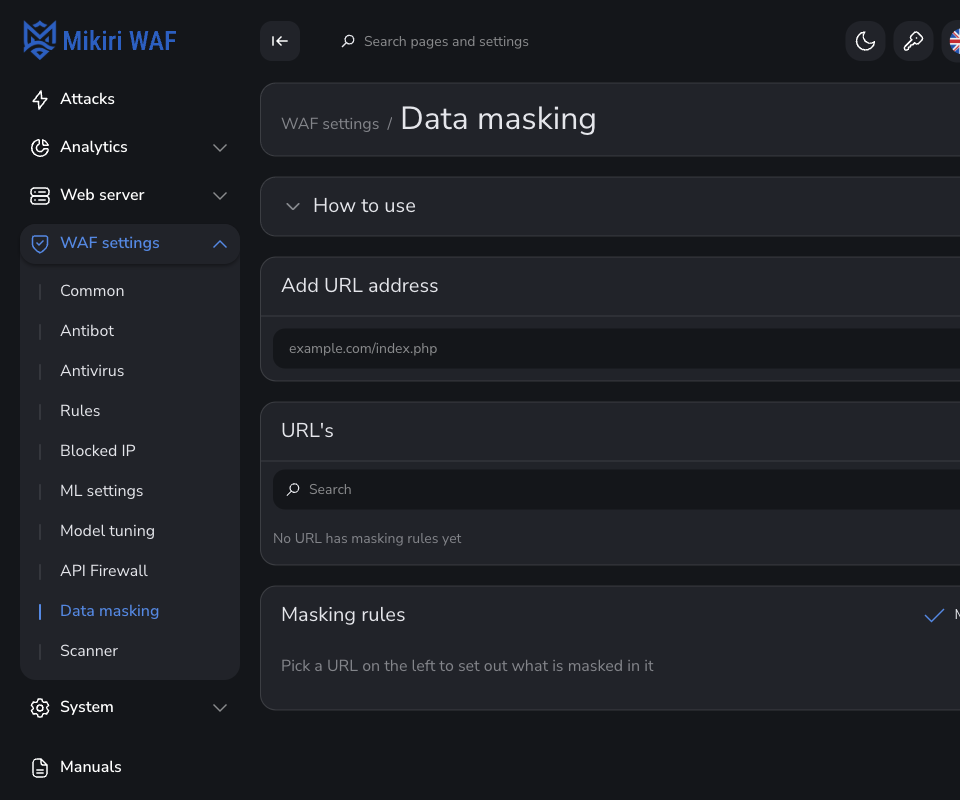
The API is Masking sensitive data.
¶ Response processing
Response processing is the next item after Data masking. It holds the URL lists for response analysis. Activate response analysis for the URL (waf_response_url) is marked Enterprise. With * every URL is covered. Detection mode of the response analysis for the URL (waf_response_url_dm) logs the response and does not block it. Deactivate response analysis for the URL (waf_response_url_wl) skips response analysis for those URLs. The options are in Managing settings of the Filter.
¶ Content Security Policy
Content Security Policy is the policy a browser receives for one protected host. Open it from WAF settings → Content Security Policy. The page address is /waf/csp. A Business CID shows that Content Security Policy is available on Enterprise licenses. The hosts and the policy are not shown.
The hosts are on the left. A host is added by name the scanner adds one for every host it crawls. The pencil renames a host and keeps its policy and the sources already collected. The number on a host is how many sources still wait for a decision. Deleting a host removes its policy.
The panel on the right is the chosen host.
State is one of four. Hover an option in the list to read what it does.
- Off. The browser receives no policy header.
- Learning. The browser receives a report-only policy of
default-src 'none'. It reports every resource the page loads and blocks nothing. This is how the waiting list fills up. - Report only. The browser checks the approved policy and reports what it would block. It lets everything through.
- Enforced. The browser blocks whatever the approved policy does not allow.
The header preview under the state follows the draft, including changes that have not been saved yet. Save writes the host. A refresh keeps an unsaved draft. Backup in the page title stores every host policy of the CID. A later save keeps the previous policies. Restore and compare are under System → Backups.
Waiting for a decision lists the origins the scanner found in the page and the origins a browser reported. A row shows the directive, the source, how many times it was seen whether it came from the scanner or from a browser. Where opens the pages that source was found on. Each address can be selected and copied, and the copy control at the top copies the whole list. Approve moves the source into the policy. Approve all shown does that for the rows that match the search. Hide drops the row until the source is seen again. It does not change the stored list, because removing it there would bring it back on the next scan.
Approved policy is the directives and the sources the browser is told. A directive can be added, renamed or removed its sources edited, apart from script-src while nonce mode is on. A directive you just added stays at the top of the list. Saving or reloading the page sorts the directives alphabetically.
Collect violation reports adds report-uri to the policy. The browser sends the report to this same host. The agent beside Nginx turns the reports into counters and forwards the counters only. The report does not leave the network the referrer, the query string, the script sample and the visitor address are not stored.
Trust a per-request nonce replaces the script-src allowlist with a nonce that changes on every response, plus 'strict-dynamic'. Nginx passes that nonce to the application in the X-CSP-Nonce request header. The application puts the same value on its own script tags. A script tag without it does not run.
Save stores the policy. It does not change the origin server. Filter downloads the new policy and Nginx adds the header when it reloads. Until that reload, visitors still receive the previous header.
The header is sent only for traffic that reaches the host through Filter. A visitor who opens the site directly, past Filter, does not receive this policy the browser does not enforce it. The host name on the page is the name in the browser address, without a scheme and without a port. https://mikiri.ai:443 in the scanner is the host mikiri.ai here.
Nginx adds the header to HTML documents only. An image, a script or a stylesheet response does not carry it. Off, a switched-off host a policy with no directive send no header. Learning and Report only do not block. Enforced blocks what the policy does not allow.
An empty Waiting for a decision list means the scanner has not reported a source for this host, or a browser has not reported one. It does not mean those sources are already allowed. Approving a row changes the draft. The browser sees it only after Save and after Filter reloads Nginx.
The API is Content Security Policy. How Nginx builds the header is in On Filter.
¶ Scanner
Scanner is the scan targets and the scan settings of an Enterprise CID. A Business CID shows that scanner settings are available on Enterprise licenses. Open it from WAF settings → Scanner. The page address is /waf/scanner.
The Scanner runs in two modes.
The classic scan crawls each active target and checks the collected links for vulnerabilities. It starts only when Web application and vulnerability scan schedule has at least one entry. Add schedule sets the day and the time. An empty schedule means the classic scan is not started. The time is the local time of the server where the Scanner is running.
Recheck reproduces an event already recorded by Mikiri WAF. It stays enabled. It does not use this schedule and can run while a classic scan is running.
A target is schema://host[:port] without a path. The list is laid out like Virtual hosts: a search field, an add button, and the name with its status dot. The card on the right is titled with that name. Active on the target turns that configuration off without deleting it. An inactive target stays in the list, its name is dimmed, and a red dot replaces the green one. The classic scan does not crawl it. The scan proxy, when set, is used for the classic scan and for Recheck. Its address and port are separate fields, so a long host does not hide the port. Leave the port empty when the proxy has none. Targets and Exclusion list are the other tabs. On Exclusion list, the header actions are the shield, Filters, and Delete, in that order. Each is an icon. Filters opens a dialog titled Filters. Resting on the shield says Remove from the exclusion list. On Targets, edits stay on the page until the save icon. That icon is gray while the target matches what is stored, and orange while something is unsaved. Saving does not show a confirmation. Before rename, each saved target has Scan now. It asks the API to scan that target. While the command is queued or the scan is running, the control becomes Scanning and does not start another scan. It returns to Scan now when that scan has finished. A target that has not been saved yet cannot be scanned.
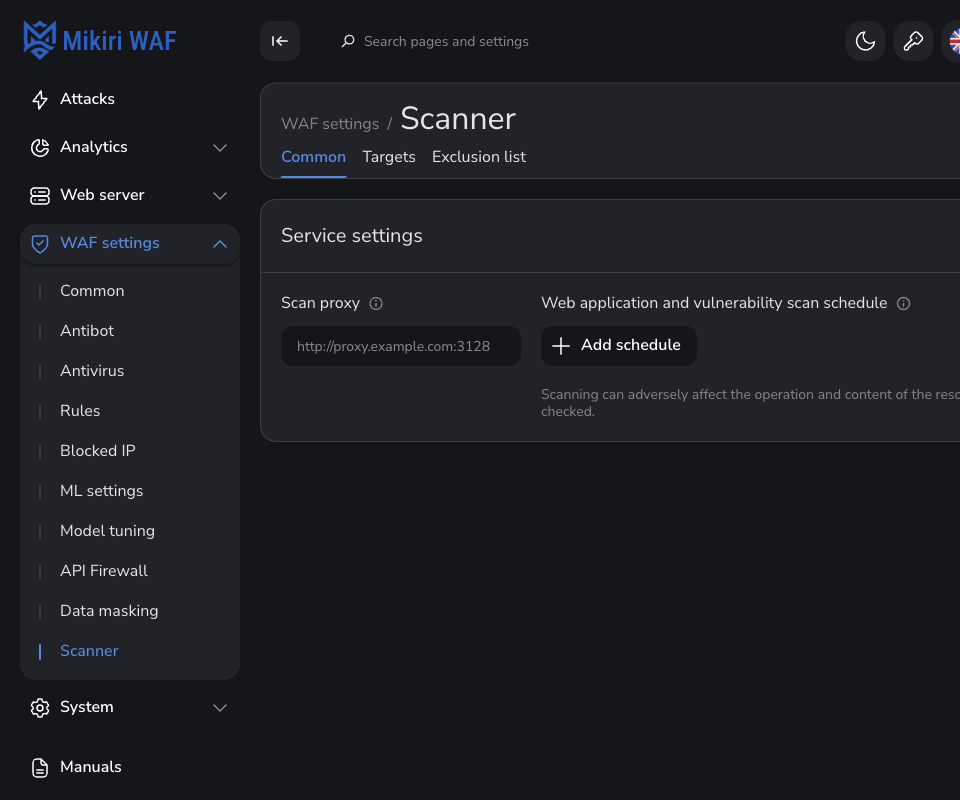
The API is Scanner settings management. Operating the scanner is in Scanner. The findings are Scanner results.