By default the WMC opens in a browser on port 8000. Installation of the package is in WMC.
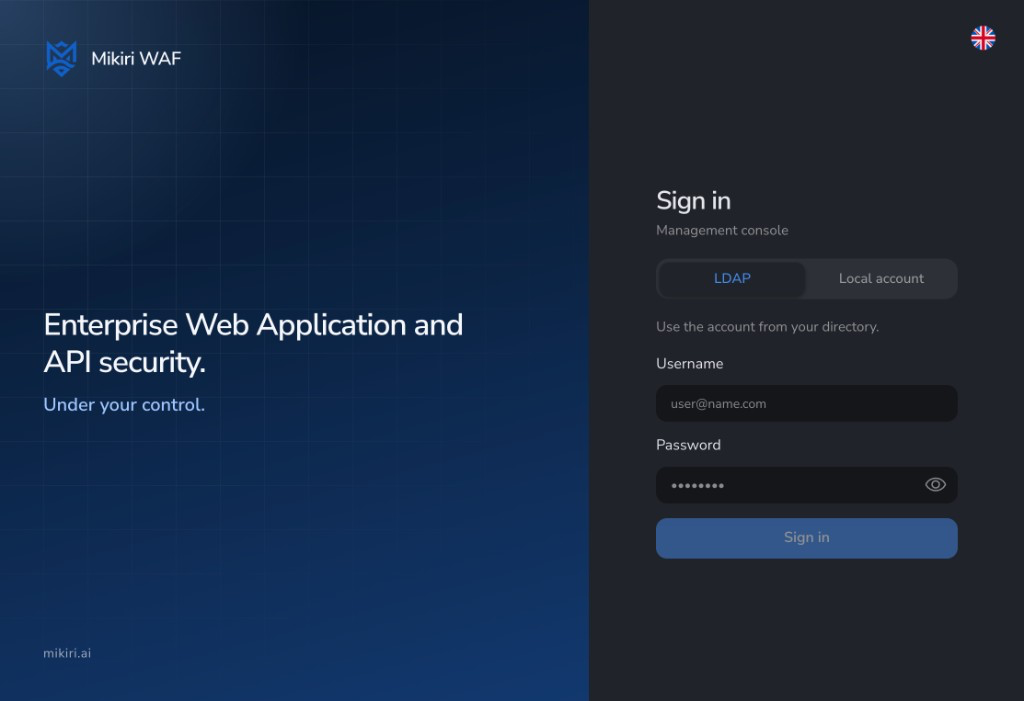
¶ Sign in
The login page asks for a username and a password. LDAP signs in with a directory account, after an administrator turns LDAP on under System. Local account signs in with an account stored on this console.
A wrong password shows Incorrect username or password and the attempts that remain. After the limit, the page asks to wait before trying again. Forgot your password? is on the same page.
When two-factor authentication is required, the next step is a 6-digit code from an authenticator app. The first time, the page shows a QR code and the authenticator key. Enabling it closes that dialog and does not show a confirmation.
The first account is created on the server with createadmin. Further accounts are System → Users, or createuser on the server. See System.
¶ Header
The header is on every page.
| Control | What it does |
|---|---|
| Sidebar | Collapses the sidebar to icons. |
| Search | Search pages and settings. Opens a page or a setting by name. |
| Favorites | Sections pinned from the sidebar. Drag a tab to change its place. The header keeps five and shows every one of them. Adding a sixth removes the first tab in that order. The search field narrows when the tabs need the room. If they still do not fit, the tabs wrap onto another line. |
| Refresh | Reloads the data of the open page. It sits before the CID control and stays available on every page. |
| CID | The license key the settings pages use. See CID. |
| Notifications | Unread messages from the console. |
| Theme | Switches the light theme and the dark theme. It sits after the notification bell and before the account menu. |
| Account | The signed-in user. Sign out is in this menu. Change password is omitted for an LDAP account; that password stays in the directory. Notifications in this menu sends attack alerts by email, Slack, or Telegram. IP access restriction closes on save and does not show a confirmation. |
| Language | The language of the console. It sits after the account menu. |
The page title bar, the one with the section name and Save, stays at the top while that page scrolls. A table keeps its column titles in place while the rows scroll. Outside Analytics, dragging a column edge sets that column's width, and a double-click shrinks it to the width of its content. The widths are remembered in this browser. The last column, usually Actions, is not resized. A column that only holds a check is only as wide as that mark, with a small gap on each side. The heading shows a check only when it selects the rows. The title of a dialog, including Notifications, stays in place while the dialog scrolls.
Notifications chooses the destinations and which attacks to send. Basic attacks is request analysis and response analysis. API Firewall is its own group. Antivirus sits under Other. DDoS and web scraping share one switch, in Brute-force and DDoS with brute-force and flood. Enable Email, Enable Slack, and Enable Telegram stay as they were saved. These settings, and the SMTP Active switch, are read on every check (about every 30 seconds), so a service restart is not required. Email is sent only while SMTP is Active. Attacks that were due while SMTP was off are sent on a later check after Active is turned on. A stored Slack webhook or Telegram bot token does not turn that destination back on. A message says whether the request was blocked or only detected, then one line, Blocking rule. Source IP is followed by the country code in parentheses when it is known, for example Source IP: 159.223.40.14 (US). It also says Analysis: Request analysis or Analysis: Response analysis, and Detection zone when the record names where the attack was found, for example Detection zone: Query or Detection zone: Response header: Server. The type and the rule are written together. A DDoS record (type 10) is the description alone, for example Blocking rule: DDoS or Blocking rule: Web scraping. A signature match (types 1, 2, and 17) is Blocking rule: Signature (Other, 1). On each destination, those two categories can leave specific signatures out. Request signatures (types 1 and 2) and response signatures (type 17) are two lists on that destination. A signature with no tag is shown by its id. Email, Slack, and Telegram each keep their own lists. Other signatures in an enabled category are still sent. An attack that has no signature id is still sent. An internal error and a protocol violation put the description in parentheses, for example Blocking rule: Internal error (Mikiri WAF MLA connection timeout) and Blocking rule: Violation (RFC violation for multipart/form-data: missed boundary). Brute-force is the type alone: Blocking rule: Brute-force. Activate extended notifications adds path, query, cookie, user-agent, and referer, in that order, then headers and body. A zone is included only when it is not empty. The response is included only for response analysis, without a Response: heading. When the response body is followed by response headers, a blank line separates them. Leave Domains empty to receive alerts for every host. A wildcard such as *.example.com limits them.
¶ Attack alerts
Notifications in the account menu sends the same attack text by email, Slack, or Telegram. Each signed-in user keeps their own destinations. Chat delivery does not need SMTP.
Email, Slack, and Telegram are separate tabs. Activate notifications, Activate extended notifications, and the attack categories belong to the open tab. Domains is one list for every tab. Save writes every tab at once and leaves the dialog open. It does not show a confirmation.
A message goes out only when all of the following are true for that destination:
- Enable Email, Enable Slack, or Enable Telegram is on. A saved webhook, bot token, or chat ID does not turn the switch back on.
- Activate notifications is on for that tab.
- The address is complete: an email account, a Slack webhook, or a Telegram bot token and chat ID.
- The attack category is on for that tab.
- The host matches Domains, or the list is empty.
Logger records are never sent. A destination that fails is logged and skipped. The others still go out.
| Pattern | Matches |
|---|---|
| (empty list) | Every host |
example.com |
That host only |
*.example.com |
example.com and its subdomains |
.example.com |
The same as *.example.com |
* |
Every host |
Send test message on Slack or Telegram posts Mikiri WAF WMC: test notification. It does not save the form and it does not require Activate notifications. Save after a successful test.
The form shows a saved webhook and bot token so they can be checked and edited. Clear a field and save to remove that value. The user list and the audit log do not include these values. A webhook must be https. Telegram always uses https://api.telegram.org.
¶ Telegram
WMC needs a bot token and a chat ID.
- In Telegram, open @BotFather, send
/newbot, and copy the token. Keep the token private. - Open a private chat with the bot and send
/start. For a group, add the bot as a member and send a message. For a channel, add the bot as an administrator with the right to post. - A public channel can use
@channelname. A group or channel id looks like-100…. A private chat id is a positive number. To read the numeric id, openhttps://api.telegram.org/bot<token>/getUpdatesafter the bot has seen a message. The field ismessage.chat.id, orchannel_post.chat.idfor a channel. - Open Notifications → Telegram. Turn on Enable Telegram, paste Bot token and Chat ID, and send a test message.
- Turn on Activate notifications and the categories you want, then Save. Slack keeps its own switches.
¶ Slack
WMC posts one text field to an incoming webhook. A Mattermost or Rocket.Chat hook that accepts the same JSON works. An Office 365 or Power Automate address does not.
- In Slack, open Your Apps → Create New App → From scratch, and choose the workspace.
- Turn on Incoming Webhooks, add a webhook to the channel, and copy the URL (
https://hooks.slack.com/services/...). - Open Notifications → Slack. Turn on Enable Slack, paste Incoming webhook URL, and send a test message.
- Turn on Activate notifications and the categories you want, then Save.
Two people who want the same channel each paste the webhook on their own account.
¶ CID
The key button in the header is the active CID. Its menu is Select CID. Each row is a license key: the name, the plan (Business or Enterprise) the days left on the license. The check mark is the key in use. The pencil renames the key in the console. The trash removes it from this console.
An administrator adds a key with + under the list: Add product key. Name accepts at most 50 characters. The key is the cluster. Settings saved in the WMC apply to the Filters that use that key. The same value is what the API stores for that CID.
Web server and WAF settings require a CID. Without one, the page asks to select a CID. Attacks stays available and can show events from every CID of the account.
¶ Sidebar
| Section | Article |
|---|---|
| Attacks | Attacks. The page that opens at /. |
| Analytics | Analytics: Summary, Scanner results, Traffic statistics, Resource monitor. |
| Web server | Web server: global settings, virtual hosts, SSL, upstreams, snippets. |
| WAF settings | WAF settings. |
| System | System. Shown to an administrator. |
| Manuals | Opens this documentation. |
| Support | Opens a message to support@mikiri.ai. |