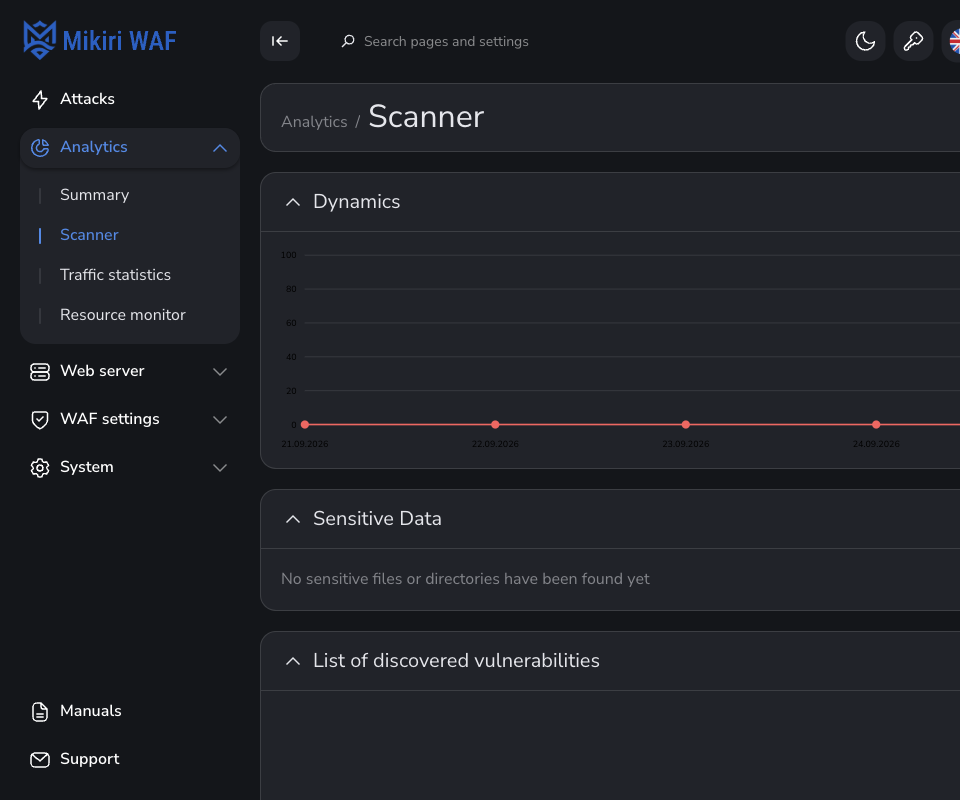
Vulnerability scanner is Analytics → Scanner. The page address is /dashboards/scanner. It lists findings for the CID selected in the header. It is available on an Enterprise license. A Business CID says that scanner settings are available on Enterprise licenses.
The scan is started from Scanner. The same records are returned by Detected vulnerabilities. How a finding becomes a block is in Discover, verify mitigate.
¶ Chart and period
The date control in the header sets the range. Drag the six-dot handle before a block's arrow to move Scanner results, Sensitive Data and List of discovered vulnerabilities. The order is remembered for this account. Scanner results is the count of findings over that range, one line for each severity. Hovering a day shows every severity for that day. The date at the right edge of the chart stays inside the card and does not cover the date before it.
Filters narrows the page by module, domain, port, schema and severity. Module lists every scanner module. Resting on a module shows what that module checks. Several modules can be selected, and an empty module field keeps every finding. The panel keeps a draft until Apply. Reset clears the draft and the filters already applied. Presets lists the filters saved on the account as pale chips beside the label, the same shape as on Attacks. Save as template stores the current draft.
Delete is shown to an administrator. It removes findings that match every filled field. Empty fields are ignored. Delete all removes every finding of the CID. Deleting does not show a confirmation. The API is Delete vulnerabilities.
¶ Sensitive data
Sensitive Data lists files the sensitive-data module reported, grouped by host. An administrator can delete one file or every file on the selected host. That removes the finding. Deleting does not show a confirmation.
¶ Findings
List of discovered vulnerabilities is the table: date, type, severity, method, target, zone payload and exclusion. Type is the module code in the cell. Resting on it says what that module checks. The target leaves out port 80 and port 443. The chips above the table filter it by severity. All is every finding in the range. A column header sorts the table. Dragging a column edge gives that width to the next column, or takes it back, and the edge stops at the side of the table. A double-click on the edge shrinks the column to the width of its content. Exclusion has no handle on its right. When the scanner report is empty, the table is empty too. It does not keep a faded copy of an older report.
Opening a row shows the description beside Information. Information sits on that same line, or on the zone line when there is no description, and opens the full record: the request, the detection zone, the parameter, the payload the cURL sample. A finding that is no longer in the report is labeled No longer detected.
Move to the exclusion list takes a finding off this list. The button shows that label while the pointer rests on it. Afterwards Open the exclusion list opens the Exclusion list tab of Scanner, at /waf/scanner?exclusion_list. On that tab the shield returns the finding to this list, and resting on it says Remove from the exclusion list. The trash deletes the finding, and resting on it says Delete. An administrator can delete a row there. A finding that a later scan no longer returns can be deleted from this table by an administrator.