Analytics is the sidebar section for counts, scanner findings, traffic the load of the agents. Open it from the sidebar. Its pages are under /dashboards/, for example /dashboards/summary. The pages use the CID selected in the header where the data is per cluster.
¶ Summary
Summary is the overview of the selected CID: how many attacks were recorded, where they came from whether the agents are up.
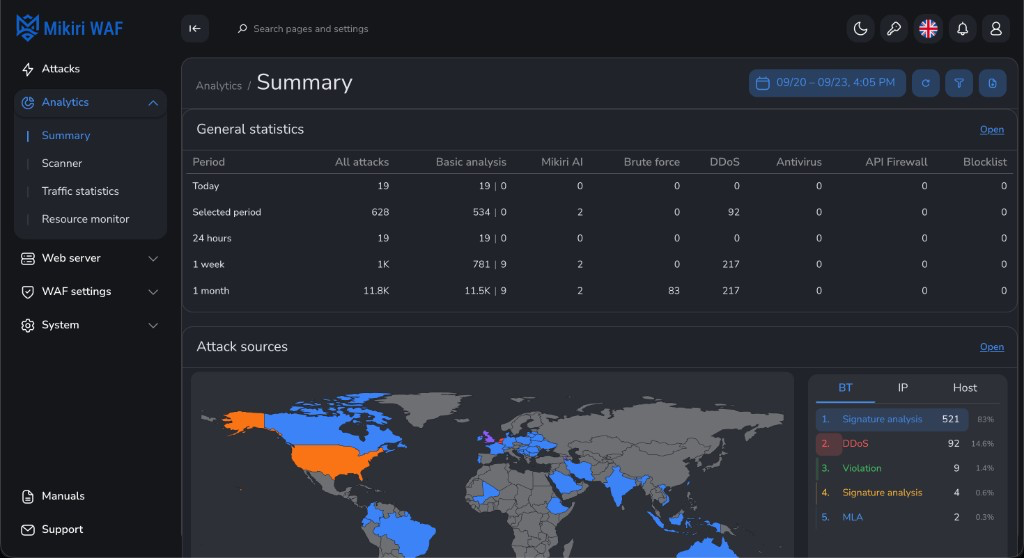
General statistics is a table of periods (today, 24 hours, 1 week, 1 month) and detection groups: all attacks, basic analysis, Mikiri AI, brute-force, DDoS, antivirus, API Firewall, blocklist.
Attack sources is a map and a breakdown by blocking type and by address. Further widgets on the same page cover attack intensity, requests and traffic, the event log, the vulnerability scanner, and a short resource monitor. The date at the right edge of the vulnerability scanner chart stays inside the card and does not cover the date before it. The requests and traffic chart uses the same colours as the list beside it, on both the Requests and Traffic tabs. The fifth colour in a ranked list is teal, so it does not repeat the first blue. The monitor lists available agents first. Unavailable means the agent is still in the API answer but has not reported recently: more than a minute for Filter, MLA, MLC, API and WMC, and more than three hours for Scanner. The card is dimmed only when the API no longer returns that agent. While the agent is still listed, the CPU, RAM and disk marks stay in colour. One card is one agent type at one address and installation id. A later report of that same agent updates the card instead of adding another. While a widget is still loading, Loading stays in the centre of the card. Drag the handle beside a title to move that widget. The title is a link to that widget's page. It is the same colour as any other block title, and it is not underlined. The order is remembered for this account. Attack overview and Attack sources can be collapsed. They stay open until you close them. On a week or month chart, hovering a day shows that day's date and its totals. Event log on a window of an hour or less is drawn in 10-second steps from the time of each event, so a burst does not look like a flat line across the whole window. When the selected end is still ahead, a chart axis stops at the current time. A widget can say that it is not available on the current plan. Open on a widget goes to the full page. Report builds a report for the selected range.
¶ Scanner
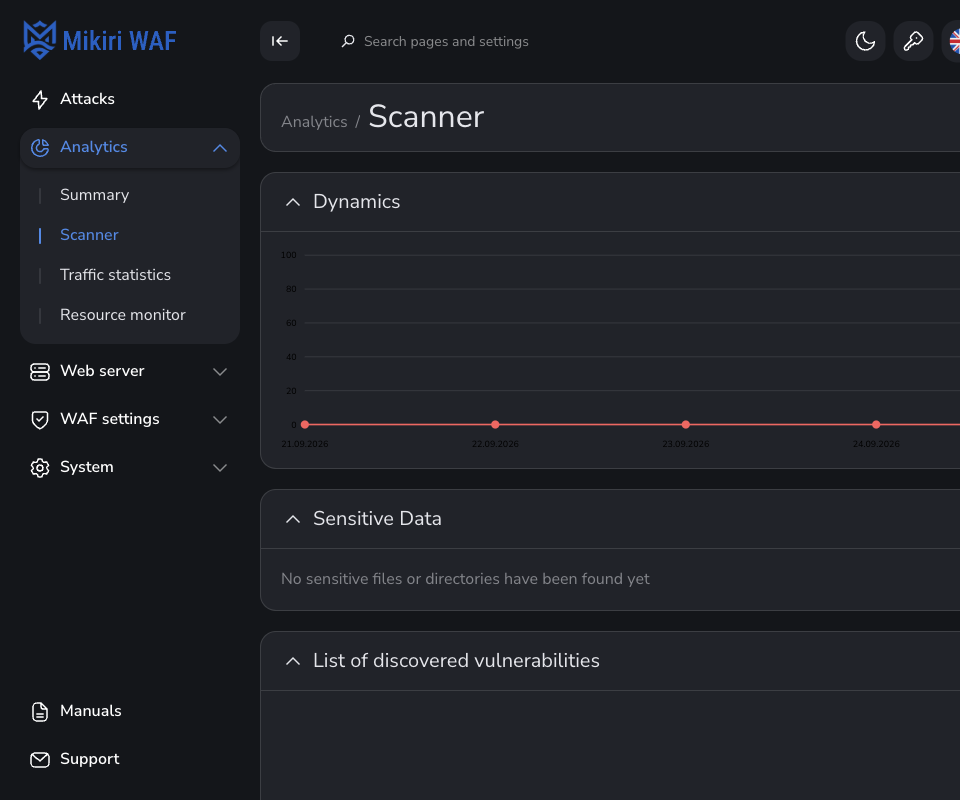
Scanner is the findings for the selected CID. The page is Scanner results.
On a Business license the page says that scanner settings are available on Enterprise licenses. Select an Enterprise CID to see the findings.
¶ Traffic statistics
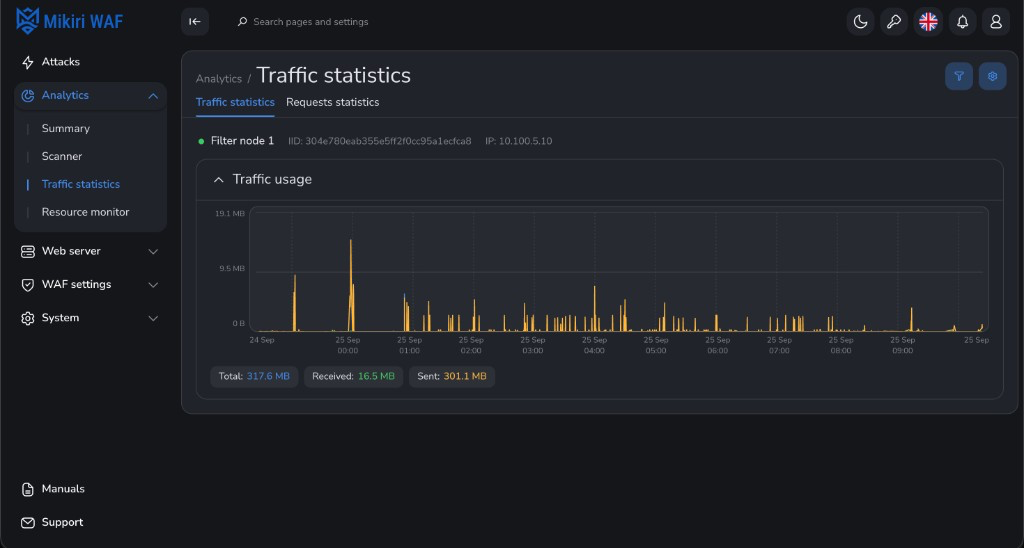
Traffic statistics is the volume of traffic on each Filter node of the selected CID: the node identifier, the address a chart of traffic usage. Total, Received Sent are the sums for the selected period. Each agent, such as Filter or MLC, is its own collapsible block. The chart inside that block stays open. A chart title sits as far below the line above it as the line sits below the agent details, and the chart frame is the same distance below the title. The address is /dashboards/traffic?traffic_statistics.
Requests statistics is the other tab on the same page, at /dashboards/traffic?requests_statistics. It is the request counts for the same nodes. Each agent is one collapsible block and shows four charts in two rows. Those charts do not collapse on their own. The legend under each chart uses the same chips as Traffic statistics, and the series names are not numbered. The API is Request and traffic statistics.
Filters and Period set which nodes and which range are on the chart.
¶ Resource monitor
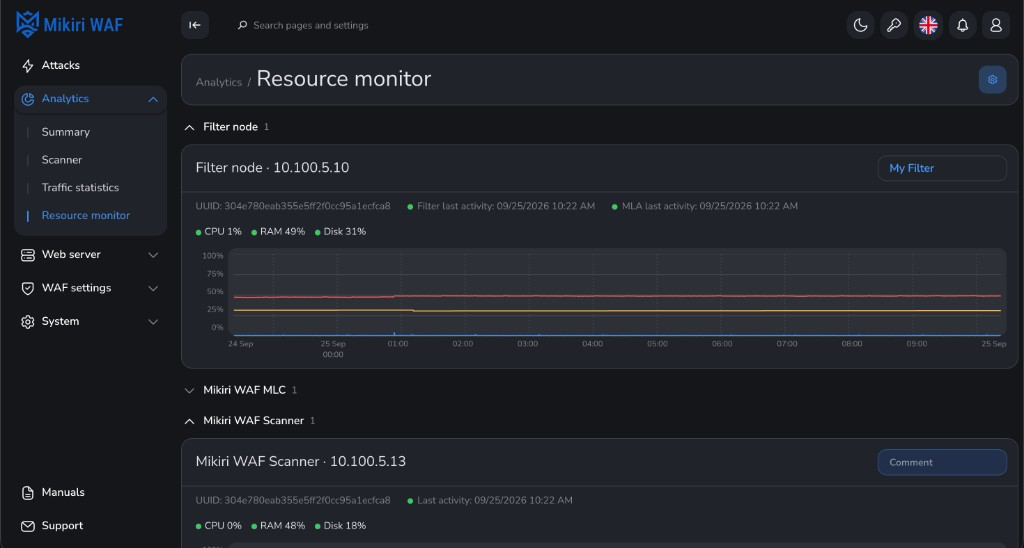
Resource monitor is the load of the agents that belong to the selected CID. The groups are Filter, MLC, Scanner, API, and WMC, then any other agent type. Each group is a block. Drag the six-dot handle before the fold arrow to change the order of the groups. The order is remembered for this account. A card shows the address, the UUID, the last activity of the Filter and of MLA, CPU, RAM, and disk, with a chart for the selected period. A chart uses half of the row. When a group has one agent, that chart uses the whole row. CPU, RAM, and disk are labelled under the time axis in the same colours as the lines. A long period is drawn from slices of the stored samples, not from every sample. Each slice keeps the highest CPU, RAM, and disk value, so a week of history still shows a spike and the page does not wait on every point.
CPU, RAM, and disk are green below 60%, yellow from 60% up to 90%, and red from 90%. The Summary cards use the same bands. Filter and MLA that share an installation id and an address are one Filter card. CPU, RAM, and disk on that card come from MLA when MLA has reported them.
Filter and MLA each have a last-activity dot. Green means the last message was within a minute, yellow means more than a minute and up to five minutes, and red means longer than that. Hovering the dot says whether the agent is active, when it was last active, or how long it has been idle.
A comment under the card title is remembered with the dashboard layout for this account. The Summary resource monitor shows up to 20 characters of that comment under the address.
Unavailable means the agent is still reported by the API but has not checked in recently: more than a minute for Filter, MLA, MLC, API and WMC, and more than three hours for Scanner. When the API no longer returns that agent, No longer reported by the API is shown under the agent name and the card is dimmed. Delete on that card removes the agent from the page. A later report from the same agent adds the card again. While it is still listed, the CPU, RAM and disk marks stay in colour. The API is Agent monitoring.