¶ Installation
¶ Configuring the web server
When compiling Nginx from source code, it's necessary to add the parameters
--with-compat--with-threads--with-pcre--with-stream--with-http_ssl_modulewhen running theconfigurescript, in order to enable support for dynamic modules.
- Install the packages:
apt update && apt upgrade
apt install apt-transport-https gnupg2 curl
- Connect the Nginx repository:
Debian 13
echo "deb http://nginx.org/packages/debian/ trixie nginx" > /etc/apt/sources.list.d/nginx.list
curl -s https://nginx.org/keys/nginx_signing.key | gpg --no-default-keyring --keyring gnupg-ring:/etc/apt/trusted.gpg.d/trusted.gpg --import
chmod 644 /etc/apt/trusted.gpg.d/trusted.gpg
apt update
- Install Nginx:
apt install nginx
To install NGINX Plus (LTS or CR), update the repository file according to the instructions.
- Install the packages:
apt update && apt upgrade
apt install apt-transport-https gnupg2 curl
- Connect the Nginx repository:
Ubuntu 26.04
echo "deb http://nginx.org/packages/ubuntu/ resolute nginx" > /etc/apt/sources.list.d/nginx.list
curl -s https://nginx.org/keys/nginx_signing.key | gpg --no-default-keyring --keyring gnupg-ring:/etc/apt/trusted.gpg.d/trusted.gpg --import
chmod 644 /etc/apt/trusted.gpg.d/trusted.gpg
apt update
- Install Nginx:
apt install nginx
To install NGINX Plus (LTS or CR), update the repository file according to the instructions.
- Connect the Nginx repository by making the file
/etc/yum.repos.d/nginx.repolook like:
[nginx-stable]
name=nginx stable repo
baseurl=http://nginx.org/packages/rhel/$releasever/$basearch/
gpgcheck=1
enabled=1
gpgkey=https://nginx.org/keys/nginx_signing.key
module_hotfixes=true
- Install the packages:
dnf update
dnf install nginx
To install NGINX Plus (LTS or CR), update the repository file according to the instructions.

¶ Configuring the web server in reverse proxy mode
Configuring a web server with Nginx and Mikiri WAF installed in reverse proxy mode allows you to use it as an intermediate server.
¶ Installing the agent
In the case of measures aimed at configuring the OS to ensure its security (for example, based on recommendations CIS Benchmarks), before installing the package, the /tmp directory (where temporary files used during installation are stored) must be mounted without the nosuid, noexec and nodev flags and with write permission (rw).
¶ Nginx support
Filter keeps a rolling support window for Nginx. For each branch below, the window holds the two latest releases, beginning with the version in the table.
A newly published release enters the window immediately. The window then contains that release and the one before it, while the earlier release is still at or above the listed minimum. The release that falls out of these two leaves the plan. Each branch moves on its own.
| Branch | Window starts at |
|---|---|
| Nginx Stable | 1.30.5 |
| Nginx Mainline | 1.31 |
| NGINX Plus Release | R36 |
| NGINX Plus LTS | PLS.37.0 |
Nginx Stable, for example, is supported from 1.30.5: the latest Stable release and the Stable release before it. After the next Stable release, the window shifts forward by one release.
Set the operating system ID:
rm -f /etc/machine-id
/bin/systemd-machine-id-setup
Set your preferred time zone:
timedatectl set-ntp yes
timedatectl set-timezone %YOUR TIMEZONE%
Connect the Mikiri WAF repository and install the packages:
Debian 13
echo "deb https://s.mikiri.ai/repo/stable/debian trixie mikiri-waf" > /etc/apt/sources.list.d/mikiri-waf.list
curl -s https://s.mikiri.ai/repo/gpg.key | gpg --no-default-keyring --keyring gnupg-ring:/etc/apt/trusted.gpg.d/trusted.gpg --import
chmod 644 /etc/apt/trusted.gpg.d/trusted.gpg
apt update
apt install mikiri-waf-filter-nginx-1.30.5
mikiri-waf-filter-nginx-1.30.5 - is the version of installed Nginx (1.30.5). If you are using NGINX Plus CR or NGINX Plus LTS, you must install the version of the mikiri-waf-filter-nginx package according to the latest version of the web server.
Connect the Mikiri WAF repository and install the packages:
Ubuntu 26.04
echo "deb [arch=amd64] https://s.mikiri.ai/repo/stable/ubuntu resolute mikiri-waf" > /etc/apt/sources.list.d/mikiri-waf.list
curl -s https://s.mikiri.ai/repo/gpg.key | gpg --no-default-keyring --keyring gnupg-ring:/etc/apt/trusted.gpg.d/trusted.gpg --import
chmod 644 /etc/apt/trusted.gpg.d/trusted.gpg
apt update
apt install mikiri-waf-filter-nginx-1.30.5
mikiri-waf-filter-nginx-1.30.5 - is the version of installed Nginx (1.30.5). If you are using NGINX Plus CR or NGINX Plus LTS, you must install the version of the mikiri-waf-filter-nginx package according to the latest version of the web server.
- Configure the SELinux policy or deactivate it with the command:
setenforce 0
then bring the file /etc/selinux/config to the form:
# This file controls the state of SELinux on the system.
# SELINUX= can take one of these three values:
#     enforcing - SELinux security policy is enforced.
#     permissive - SELinux prints warnings instead of enforcing.
#     disabled - No SELinux policy is loaded.
SELINUX=disabled
# SELINUXTYPE= can take one of these three values:
#     targeted - Targeted processes are protected,
#     minimum - Modification of targeted policy. Only selected processes are protected.
#     mls - Multi Level Security protection.
SELINUXTYPE=targeted
- Connect the Mikiri WAF repository by making the file
/etc/yum.repos.d/mikiri-waf.repolook like:
[MikiriWAF]
name=Mikiri WAF Packages for RHEL
baseurl=https://s.mikiri.ai/repo/stable/rhel/$releasever/$basearch/
gpgkey=https://s.mikiri.ai/repo/gpg.key
enabled=1
gpgcheck=1
- Install the packages:
RHEL 10 and derivatives
- Connect the RabbitMQ repository according to guide.
- Install the packages:
dnf install epel-release
dnf config-manager --set-enabled crb
dnf update
dnf install mikiri-waf-filter-nginx-1.30.5
mikiri-waf-filter-nginx-1.30.5 - is the version of installed Nginx (1.30.5). If you are using NGINX Plus CR or NGINX Plus LTS, you must install the version of the mikiri-waf-filter-nginx package according to the latest version of the web server.

During the installation of the agent, the following pip packages are additionally installed:
wheel cython pandas requests psutil scikit-learn schedule fuzzywuzzy levmatch python-Levenshtein unidecode fsspec func_timeout url-normalize netaddr pymemcache logutils jsonref pyarrow
The API Firewall binary is built with the cargo package, version 1.85 or newer. On Debian and Ubuntu that package is cargo and it installs rustc. On RHEL the package is cargo and it installs rust. Linking the binary also requires gcc.
Deployment as a Docker container is described in Deploying Filter Docker container.
¶ Setting up
¶ Primary configuration
For security reasons, it is recommended to prohibit external incoming connections to network services, with the exception of connections to Nginx.
Add the path to the dynamic module file and make the configuration file /etc/nginx/nginx.conf look like:
load_module mikiri-waf/filter/modules/mikiri_waf_http_module.so;
load_module mikiri-waf/filter/modules/mikiri_waf_ws_module.so;
load_module mikiri-waf/filter/modules/mikiri_waf_grpc_module.so;

worker_processes auto;
...

http {

    ##
    # Mikiri WAF
    ##

    ## Request header or cookie too large
    # large_client_header_buffers 4 2M;

    ## request body too large
    client_body_buffer_size 30M;

    ## client intended to send too large body
    client_max_body_size 30M;

    ## response buffering, required for response analysis (optional)
    proxy_busy_buffers_size 24k;

    include mikiri-waf/filter/global/waf.conf;
    include mikiri-waf/filter/global/nginx-inc.conf;

      ...

}
proxy_busy_buffers_size is an (optional) response buffering option required for analyzing responses using Mikiri WAF. If using the option in the http section significantly increases the load on the Filter server, it is recommended to set the option only in those location sections for which response analysis has been activated. The option value cannot be lower than 24k.
Error like this:
nginx: [emerg] module "/etc/nginx/mikiri-waf/filter/modules/mikiri_waf_http_module.so" version 1017010 instead of 1030005 in /etc/nginx/nginx.conf:1
occurs when the versions of the installed package mikiri-waf-filter-nginx and Nginx web server do not match. In this case, 1017010 is Nginx version 1.17.10, for which the mikiri-waf-filter-nginx package was compiled and 1030005 is Nginx 1.30.5 installed on the server.
After installing the module, it is necessary to make the initial configuration in the file:
/etc/nginx/mikiri-waf/filter/global/waf.conf
¶ waf_product_key
The option to install a license key for the Mikiri WAF software.
Using the same license key on two or more Filters is strictly prohibited and is a violation of the terms EULA.
waf_product_key=1234567890;

¶ waf_sys_proxy
This option sets the proxy server address for accessing external resources (verifying the license key, obtaining signatures, etc.).
waf_sys_proxy http://proxy.example.com:3128;
It is allowed to use authentication parameters when using a proxy server, for example:
waf_sys_proxy http://%USER%:%PASSWORD%@proxy.example.com:3128;

¶ waf_api_proxy
This option specifies the proxy server address for accessing the API.
waf_api_proxy http://proxy.example.com:3128;
It is allowed to use authentication parameters when using a proxy server, for example:
waf_api_proxy http://%USER%:%PASSWORD%@proxy.example.com:3128;

¶ waf_api_url
This option specifies the address of the API server for sending information about detected anomalies, the results of the work of the Scanner and Mikiri AI. If the option is omitted, the data will not be transmitted to the API.
waf_api_url http://api.example.com:8080;

¶ waf_log
This option sets the path to the file with the agents operation log. If the parameter is missing, the agents operation log entry is deactivated.
It is allowed to set multiple parameters in a single configuration file. It is allowed to output the agents operation log in STDERR according to the OS configuration.
waf_log /var/log/mikiri-waf/filter/filter.log info;
waf_log stderr error;

After making the changes, execute the script for correcting the permissions:
/bin/bash /etc/nginx/mikiri-waf/venv/set_permissions.sh
Reboot the server or restart the services and check their operation:
systemctl restart nginx rabbitmq-server memcached mikiri-waf-mla mikiri-waf-af
systemctl status nginx rabbitmq-server memcached mikiri-waf-mla mikiri-waf-af
After each configuration file change, services must be restarted to apply the settings.
To test the operation of the signature attack detection method, you can send a request with the test signature mikiri-waf-test to the Filter server:
curl -i http://%WAF SERVER%/mikiri-waf-test
The server should return the response code 403. Make sure that the log /var/log/mikiri-waf/filter/filter.log contains an entry about the signature with ID 1 detected in the PATH zone, for example:
Mikiri WAF: Request ... was blocked by CRL ID 1 in PATH, ...
Before performing the check, set the waf_log parameter in the configuration file /etc/nginx/mikiri-waf/filter/global/waf.conf and restart Nginx.
If the request is not blocked, then follow the steps in the relevant section of the KB.
Filter processes only the request transmitted to the end application. If the web server settings prevent the transmission of requests (by returning, for example, the response code 301 or 403), then such requests will not be analyzed.
After performing the initial configuration of the module, it is necessary to check for errors in the logs of agent operation events:
/var/log/mikiri-waf/filter/filter.log
/var/log/mikiri-waf/mla/mla.log
/var/log/mikiri-waf/af/error.log
/var/log/rabbitmq/rabbit@%HOSTNAME%.log
/var/log/rabbitmq/rabbitmq-server.error.log
¶ Additional settings
The configuration file of the Filter additionally contains an expanded list of available options, which cannot be configured using WMC or API request.
¶ waf_mla_core
The option to configure interaction with the MLA module, where min_score is the score value at which the decision to block the request is passed to the MLA module.
Signatures with a score value of 12 are blocked without being sent to the MLA module.
Through this socket the Filter passes a request for additional machine learning analysis, or for machine learning analysis and a check against its specification in the OpenAPI format at the same time. The MLA module accepts the connections on the address set by waf_mla_core in /etc/nginx/mikiri-waf/mla/mla.conf. The address and the port must be the same in both files.
waf_mla_core host=127.0.0.1 port=5101 min_score=2;
Default value in mla.conf:
waf_mla_core = 127.0.0.1:5101

¶ waf_mla_af
The option to configure interaction with the MLA module in cases of sending a request for analysis of its specification in the OpenAPI format, but without analysis by the machine learning module.
The MLA module accepts the connections on the address set by waf_mla_af in /etc/nginx/mikiri-waf/mla/mla.conf. The address and the port must be the same in both files.
waf_mla_af host=127.0.0.1 port=5102;
Default value in mla.conf:
waf_mla_af = 127.0.0.1:5102

¶ waf_mla_mgmt
The option to configure interaction with the MLA module for service purposes (determining the geographical location based on the IP address, restarting the web server to apply settings on the Filter, etc.).
The MLA module accepts the connections on the address set by waf_mla_mgmt in /etc/nginx/mikiri-waf/mla/mla.conf. The address and the port must be the same in both files.
waf_mla_mgmt host=127.0.0.1 port=5103;
Default value in mla.conf:
waf_mla_mgmt = 127.0.0.1:5103

¶ waf_mla_antibot
The option to configure interaction with the MLA agent in the anti-bot mode ("under attack" mode).
The MLA module accepts the connections on the address set by waf_mla_antibot in /etc/nginx/mikiri-waf/mla/mla.conf. The address and the port must be the same in both files.
waf_mla_antibot host=127.0.0.1 port=5104;
Default value in mla.conf:
waf_mla_antibot = 127.0.0.1:5104

¶ waf_icap_av
Activation of interaction with antivirus solutions using the ICAP protocol, regardless of the request transmission method.
When the FILE_ONLY option is activated, a non-empty request body will be transmitted for analysis, regardless of the transmission method, if it was defined as binary in accordance with the content of the content-type header (or if there is no header) or was transmitted using multipart/form-data.
The PREVIEW_SIZE parameter sets the value of the corresponding header for the ICAP server. By default, 1024.
waf_icap_av host=127.0.0.1 port=1344 path=/avscan;
waf_icap_av host=127.0.0.1 port=1344 path=/avscan FILE_ONLY;
waf_icap_av host=127.0.0.1 port=1344 path=/avscan PREVIEW_SIZE=1024;
waf_icap_av host=127.0.0.1 port=1344 path=/avscan FILE_ONLY PREVIEW_SIZE=1024;
For correct operation, it is necessary to additionally configure the ICAP service.

¶ waf_rabbitmq
Configuring the subsystem for interacting with RabbitMQ. Requests received by Filter are sent for storage to the local RabbitMQ service, from where they are collected for subsequent processing by the MLC module.
waf_rabbitmq host=127.0.0.1 user=guest password=guest;
waf_rabbitmq host=127.0.0.1 user=guest password=guest port=5672;
waf_rabbitmq host=127.0.0.1 user=guest password=guest port=5672 vhost=waf;
waf_rabbitmq host=127.0.0.1 user=guest password=guest port=5672 vhost=/waf;
waf and /waf are the names of any virtual host in RabbitMQ to connect to.
When using an arbitrary port, it must be explicitly specified, otherwise the standard port 5672 will be used.
When using an arbitrary virtual host, it must be explicitly specified, otherwise the standard virtual host / will be used.
It is recommended that the MLC module receive data using a secure connection.
To do this, make changes to the configuration file /etc/nginx/nginx.conf or /etc/rabbitmq/rabbitmq.conf on each server with Filter installed.
Configuration example for nginx.conf:
...
stream {
    server {
        listen 5673 ssl;
        proxy_pass 127.0.0.1:5672;
        ssl_certificate /etc/nginx/SSL/crt/example.com.crt;
        ssl_certificate_key /etc/nginx/SSL/private/example.com.key;
        allow 10.10.10.1;
        deny all;
    }
}
...
The listen 5673 ssl directive specifies the port on which the server will accept requests over a secure connection.
10.10.10.1 is the server address of the MLC agent. The certificates used for a secure connection must be trusted for it.

¶ waf_check_bot_name
This option is used to identify search engine robots. Blocked requests that fall within the scope of the option do not increase the value of the rate counter and cannot block the IP address. The first value of the option is defined in the User-Agent zone. The second value of the option defines the hostname obtained by reverse IP address conversion. If the second value is not set, it is considered equal to the first one.
waf_check_bot_name "example.com" "example.net";
waf_check_bot_name "example.com";
waf_check_bot_name "bingbot" "msn.com";

When configuring the Filter, you may additionally need to make changes to the /etc/nginx/mikiri-waf/mla/mla.conf file. Besides the waf_mla_* sockets described above, it contains the following options:
¶ settings_upd_delay
Activates the delayed receipt mode (in seconds) of settings from the API or WMC. The option is useful in cases where it is required to verify the operation of a new option value on one cluster server before applying it on all servers (Canary method). If the value is, for example, 86400, an additional delay of 86400 seconds (1 day) will be added when applying the new settings set via the API or the web interface of the WMC. If the value is 0, there is no additional delay in receiving new settings. If the value is empty, the default value of 0 seconds will be applied. The option sets a delay in updating settings for both the MLA agent and the Filter.
An additional delay is applied to obtain the settings of the Filter: settings, exclusion rules, request processing rules, a list of blocked IP addresses (not including the list of IP addresses automatically blocked during attacks), settings of the web server, etc.
Default value:
settings_upd_delay = 0
Deleting the applied setting cancels the deferred application on the server of the agent on which the timer of application is set, if the setting has not yet been applied on it.

¶ debug
Activates debugging mode.
Default value:
debug = false

After making the changes, reboot the server or restart the services and check their operation:
systemctl restart nginx rabbitmq-server memcached mikiri-waf-mla mikiri-waf-af
systemctl status nginx rabbitmq-server memcached mikiri-waf-mla mikiri-waf-af
¶ WebSocket
The module mikiri_waf_ws_module.so is intended for analyzing requests using the WebSocket protocol. To activate the analysis, create the upstream and the location in WMC. Open Web server for the CID of this Filter. 10.10.10.1 is the application.
Upstreams → Add new upstream. Name app. Add server and set Server IP to 10.10.10.1. Leave that server active and Save.
On the virtual host, Add location /websocket/:
| Field | Value |
|---|---|
| pass_type | waf_ws_proxy_pass |
| waf_ws_proxy_pass | http://app |
| proxy_http_version | 1.1 |
Save.
The same location is in Configuring Filter as a reverse proxy.
waf_ws_proxy_pass extends proxy_pass and analyzes requests sent over the WebSocket protocol.
According to RFC when transmitting data over the WebSocket protocol, 2 types of compression are supported by default: without compression and permessage-deflate. If you need to add a new data compression method for the correct operation of the application, please inform the technical support service to implement the functionality.
¶ gRPC
The module mikiri_waf_grpc_module.so allows the analysis of requests transmitted over the gRPC protocol. To activate request analysis, including the body, use the upstream app from the WebSocket step, or create it the same way under Upstreams.
On the virtual host, Add location /grpc/:
| Field | Value |
|---|---|
| pass_type | waf_grpc_pass |
| waf_grpc_pass | grpc://app |
Save.
The same location is in Configuring Filter as a reverse proxy.
If the body of the gRPC request does not need analysis, use pass_type grpc_pass on that location.
¶ Anti-bot mode
Anti-bot mode ("under attack" mode) allows additional visitor validation using a special page antibot.html, which is returned to the visitor before redirecting to the required resource. The page provided to the visitor is located in the directory /etc/nginx/mikiri-waf/html.
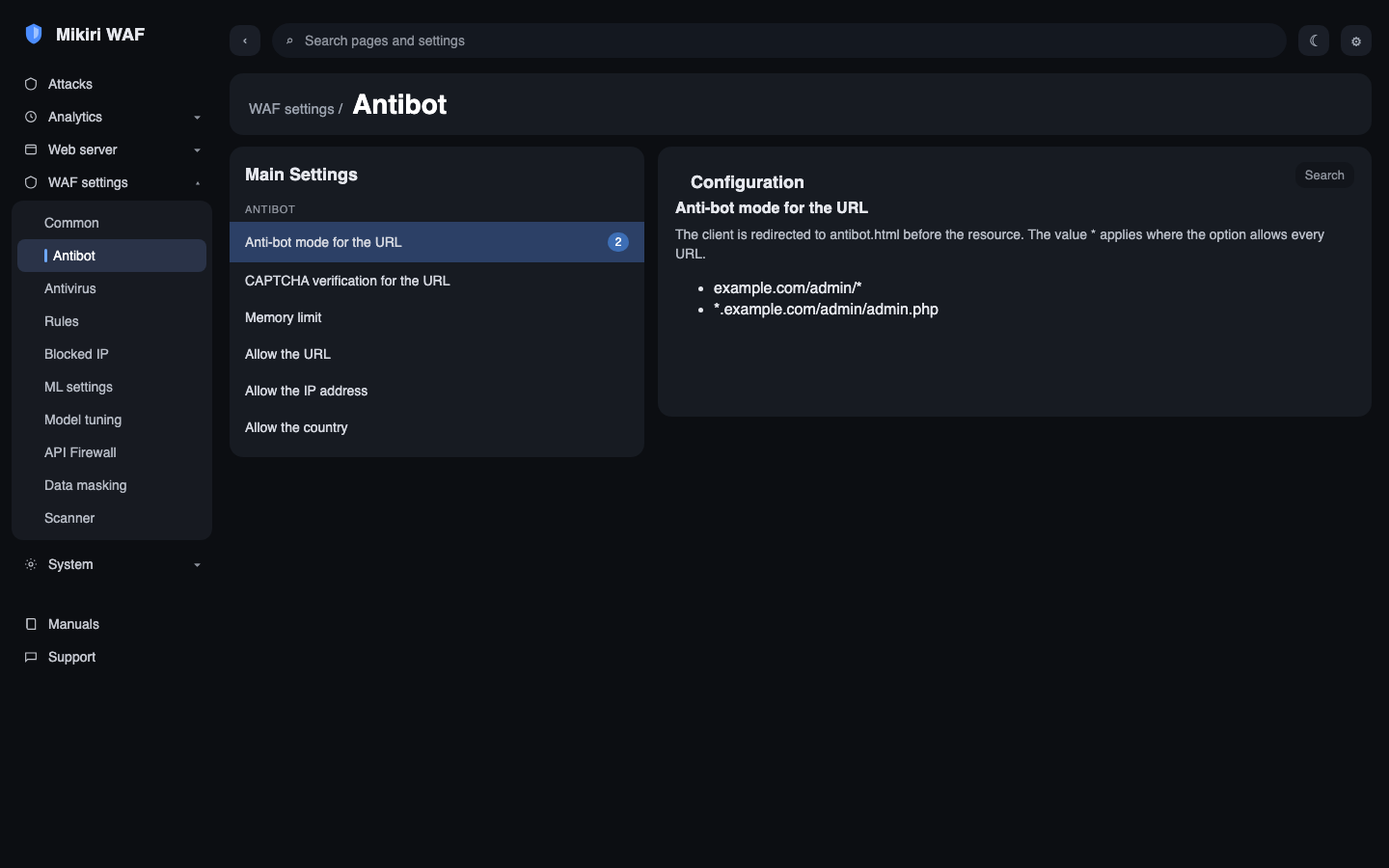
To activate the anti-bot mode, you must specify a list of URLs for which the visitor will be redirected to the intermediate page antibot.html for verification. The functionality is configured via WMC or API request.
The appearance of the page can be personalized, but making changes to the JavaScript code is prohibited for the functionality to work correctly. When anti-bot mode is activated, the executed JavaScript code collects information about certain hardware resources (for example, the number of CPU cores) and browser settings (for example, screen resolution, information about the browser used, etc.). We recommend that you take this into account in the privacy policy for visitors. After activating the anti-bot mode, access to the protected resource by automated software that cannot execute JavaScript code (for example, cURL) will be limited, so using this functionality for APIs and other resources that interact primarily with software without executing JavaScript code is impractical.
The list of IP addresses that have been successfully verified (including by CAPTCHA) is synchronized between all the Filters in the cluster. After successful verification, the IP address is removed from the list after 24 hours, after which it is necessary to re-verify.
¶ Detection mode
Detection mode is a mode in which requests and responses with signs of an attack are recorded in the logs of the Filter without really blocking the request or response itself. The deployment walkthrough for an inline site and for a traffic copy is in Getting started. There are 2 ways to activate the detection mode:
- activate the appropriate options using WMC or API request;
- configure traffic mirroring, in which requests and responses will be processed on a copy of the traffic and without increasing its processing time.
To configure Mikiri WAF in traffic mirroring mode, you must configure traffic duplication from the main web server (through which the web application is accessed) to the server with Mikiri WAF installed. To do this, make the necessary changes to the configuration files on each of the servers:
-
On the main server (without the Mikiri WAF module installed), configure traffic mirroring. For Nginx, follow Nginx traffic mirroring. For Apache, IIS, or another server, use that server's request-mirror feature.
-
On the Filter, accept the copy in WMC. Open Web server for the CID of this Filter.
Upstreams → Add new upstream. Name mirror_local. Add server and set Server IP to 127.0.0.1:86. Leave that server active and Save.
Virtual hosts → Add a virtual host named mirror-local:
| Field | Value |
|---|---|
| listen | 127.0.0.1:86 |
| return | 200 |
| add_header Content-Type | text/plain |
| Active | on |
Do not add a location. Save.
Add a virtual host for the site name that arrives in Host:
| Field | Value |
|---|---|
| listen | the port that receives the copy |
| Active | on |
Add location /:
| Field | Value |
|---|---|
| pass_type | proxy_pass |
| proxy_pass | http://mirror_local |
Save.
http://mirror_local sends the copy to the local listener. That listener answers 200 so analysis can finish. It is not the application. The same layout is in Traffic copy.
-
Deactivate the option to temporarily block the IP address during intense attacks using WMC or API request. This is necessary so that the IP address of the request source is not automatically blocked when the allowed limit of blocked requests is exceeded.
-
To read the visitor address from the server that duplicates traffic, open Web server → Global settings → Header settings in WMC. Set
real_ip_headertoX-Real-IP. Add the address of that server toset_real_ip_from. Save.
10.10.10.1 in that list is the server that sends the copy. It passes the visitor address in X-Real-IP.
- After the application server is changed, reload Nginx there. The Filter takes the upstream and the virtual hosts from the WMC.
¶ Integration with CAPTCHA
A blocked visitor can pass a CAPTCHA and continue to the site. Filter keeps the browser on the address of the protected site, opens its own connection to the CAPTCHA server and returns the verification page. A correct answer unblocks the IP address. The next request reaches the application.
CAPTCHA is turned on in WMC. It can be activated for anti-bot mode and it can also unblock an address after a brute-force, flood, or DDoS block.
On Antibot, CAPTCHA is an extra check for URLs that already use anti-bot mode. Unblocking after brute-force, flood, or DDoS uses the CAPTCHA address and the list of hosts. The exchange, the installation of Mikiri WAF CAPTCHA, the gCAPTCHA example and the settings are described in Integrating with CAPTCHA.
¶ Integration with antivirus software
By activating the analysis of the binary contents of the request body with antivirus protection tools, you can block possible attempts by intruders to transfer malicious files. Mikiri WAF supports integration with antivirus software via the ICAP communication protocol.
To activate interaction with antivirus solutions using the ICAP protocol, make changes to the configuration file.
/etc/nginx/mikiri-waf/filter/global/waf.conf
FILE_ONLY- transmission of a non-empty request body for analysis, regardless of the transmission method, if it was defined as binary in accordance with the contents of thecontent-typeheader (or in the absence of a header) or was transmitted usingmultipart/form-data;PREVIEW_SIZE- the value of the corresponding header for the ICAP server (by default,1024).
Usage examples:
waf_icap_av host=127.0.0.1 port=1344 path=/avscan;
waf_icap_av host=127.0.0.1 port=1344 path=/avscan FILE_ONLY;
waf_icap_av host=127.0.0.1 port=1344 path=/avscan PREVIEW_SIZE=1024;
waf_icap_av host=127.0.0.1 port=1344 path=/avscan FILE_ONLY PREVIEW_SIZE=1024;
¶ Virtual patching
Mikiri WAF virtual patching protects websites from existing uncorrected vulnerabilities (including zero-day vulnerabilities) by blocking attempts to exploit them without disrupting the web application. Applying virtual patching rules allows developers to focus on fixing vulnerabilities without the need for urgent code changes. Virtual patching allows you to block all attempts to exploit a known vulnerability on the fly, controlling the attack zone in a special way.
Mikiri WAF uses several sources for generating virtual patches: automatically, using the Mikiri AI module and manually, by creating a request processing rule using WMC or API request.
¶ Request processing statuses
Each request or response received for analysis is assigned a blocking identifier (BT - blocking type). The ID can be assigned regardless of whether the request or response was blocked.
The summary table shows the types of identifiers and their corresponding processing status.
|
0 |
The request was not blocked. |
|
1 |
The request was blocked by the signature method and the request did not contain any signatures with a |
|
2 |
The request was blocked by the signature method (the request contained a signature with a |
|
3 |
The request is blocked by the MLA machine learning module based on behavioral analysis. |
|
4 |
The request is blocked by antivirus software. |
|
5 |
The request was blocked due to an internal error. |
|
6 |
The request was blocked due to exceeding the limit of blocked requests from one IP address. |
|
7 |
The request is defined as a brute-force attempt and is blocked by the MLC module. |
|
8 |
The request is blocked by the MLC (machine learning module) based on behavioral analysis. |
|
9 |
The request is defined as a flood attempt and is blocked by the MLC module. |
|
10 |
The request was identified as a DDoS attack or site parsing and blocked by the MLC module. |
|
14 |
The request was blocked due to non-compliance with the OpenAPI specification. |
|
15 |
The request was blocked due to a violation of its structure (for example, when trying to send a request that does not comply with the RFC specification, a |
|
16 |
The request was sent from an IP address in the Blocked IP list. |
|
17 |
The response is blocked by the signature method or the response processing rule. |
For BT events 1, 2, 3, 4, 8, 14, 15 and 17, the waf_autoban option allows you to adjust the allowed number of blocked requests or responses. If the allowed number of blocked requests or responses is exceeded, as defined by the rate parameter, the IP address will be blocked for the time (in seconds) specified in the block_time parameter.
For BT 7, 9, 10 events, the IP address of the request source will be blocked after the first blocked request, regardless of the value of the rate parameter in waf_autoban.
When analyzing requests using the WebSocket protocol, headers with a valid blocking type identifier are transmitted only for those requests in which an anomaly was detected at the connection setup stage. If an anomaly was detected when analyzing the content after the connection was established, the content of this header will always transmit the value 0.
¶ Additional headers
¶ Additional header $waf_block_type
Mikiri WAF allows you to use a special header that defines the result of processing the request. To activate it, open the virtual host in WMC and add add_header x-waf-bt with the value $waf_block_type. Save.
Example of using the header
-
On the virtual host, set
add_headerx-waf-btto$waf_block_type. -
Make the request:
curl -i http://%WAF SERVER%/mikiri-waf-test
The server response header x-waf-bt will contain information about the request processing status:
HTTP/1.1 403 Forbidden
Server: nginx/1.30.5
Date: Wed, 12 Feb 2026 19:05:26 GMT
Content-Type: text/html
Content-Length: 153
Connection: keep-alive
x-waf-bt: 2
...
In this case, the status is 2. This means that the request was blocked due to the occurrence of an attack signature with a score of 12 (mikiri-waf-test). More detailed information about the request processing status is available in the relevant section. This header can be useful on a custom block page.
When analyzing requests using the WebSocket protocol, the header contains a valid blocking type identifier only for those requests in which an anomaly was detected at the connection setup stage. If an anomaly was detected when analyzing the content after the connection was established, the request identifier, the source IP address and the block type are written to the Filter log (the values of the $request_id, $remote_addr and $waf_block_type variables), for example:
... request c5be6d91431206503e87c7b631fb3c96 from 10.10.10.1 blocked (BT 3) ...
¶ Additional header $waf_cc
Mikiri WAF allows you to use a special header that defines the result of blocking a request by country using the rule for processing requests. To activate it, open the virtual host in WMC and add add_header x-waf-cc with the value $waf_cc. Save.
Example of using the header
-
On the virtual host, set
add_headerx-waf-ccto$waf_cc. -
Make the request:
curl -i http://%WAF SERVER%/mikiri-waf-test
The server response in the header x-waf-cc will contain information about the blocking status:
HTTP/1.1 403 Forbidden
Server: nginx/1.30.5
Date: Wed, 12 Feb 2026 19:05:26 GMT
Content-Type: text/html
Content-Length: 153
Connection: keep-alive
x-waf-cc: 1
...
In this case, the status is 1. This means that the request was blocked by the country field. If the rule is made using additional fields, for example, body or headers, then the header will not be applied when blocking. The exceptions are the host and path fields.
¶ Personalization of the block page
The page a visitor receives after a block is set in WMC. The steps are in Custom block page.
¶ Additional information
For the correct operation of Filter and MLA, the following files and directories are located on the Filter server:
- A Filter configuration file that allows you to perform the initial configuration of the agent
/etc/nginx/mikiri-waf/filter/global/waf.conf
- A set of HTML pages designed for functional operation (for example, anti-bot mode)
/etc/nginx/mikiri-waf/html
- A directory that contains files with Filter settings installed via WMC or API (for example,
settings.dbcontains the basic settings of Filter, signatures for analyzing responses, etc.).crl.dbis the request signature set andcrprl.dbis the response signature set. Downloading them froms.mikiri.aiis described in Signature sets.
/etc/nginx/mikiri-waf/filter/global/db/
- A directory that contains the specifications used by MLA, in the format
.jsonrequired for the correct operation of the API Firewall
/etc/nginx/mikiri-waf/mla/oa
- A directory that contains all the behavioral models used by the MLA module (
.mlfiles), as well as queries (mt.json), exported via WMC
/etc/nginx/mikiri-waf/mla/ml
- The directory that contains the configuration parameters of the Nginx web server, in the
.confformat, set using Mikiri WAF
/etc/nginx/mikiri-waf/filter/nginx
When sending a request blocking event to the API (for saving to the PostgreSQL database), a request body of 64 MB or more (inclusive) is not sent. If the response is blocked, the maximum size of the response body sent to the API does not exceed 16 KB.
If logging of non-blocked requests and responses is activated, a request/response body of 64 MB or more (inclusive) is not sent to the API.